The PARA Method in Notion: A Complete Setup Guide

PARA sorts everything you capture into four categories based on actionability, not topic: Projects, Areas, Resources, Archives. The method itself is simple to describe. The part that actually determines whether it works long-term is how you build it in Notion — as four related databases, not four static pages you manually move content between. (For where this fits into a broader Notion workspace, see our complete guide to Notion templates.)
Why PARA sorts by actionability, not topic
A folder system organized by topic ("Marketing," "Health," "Reading") breaks down because most things you capture don't belong to one topic — and worse, topic doesn't tell you anything about whether something needs action. PARA sorts by a different axis entirely:
- Projects — has a deadline and a defined finish state. "Launch the Q3 campaign," not "Marketing."
- Areas — an ongoing responsibility with no end date. "Health," "Finances," a role you hold indefinitely.
- Resources — reference material relevant to a project or area, kept for future use.
- Archives — anything from the other three that's no longer active.
Building it as related databases, not four pages
The mistake most first attempts make is building PARA as four separate top-level pages with content pasted in manually. The version that actually scales is four databases with relation properties between them: a Projects database related to Resources (so a project page shows its supporting reference material automatically via a linked view), and a single Status or "Active" property that — combined with a filtered view — handles archiving without a manual move step. When a project finishes, you don't drag it to a different page; you flip a property, and the Archive view (a filtered view of the same database) picks it up automatically.
The capture inbox: PARA's most-skipped piece
Every workable PARA setup needs somewhere to drop something fast without deciding immediately which of the four categories it belongs to — an inbox database that gets triaged during a weekly review, not sorted in the moment of capture. Skipping this step is the single most common reason people abandon PARA within a few weeks: without an inbox, every new piece of information demands an immediate sorting decision, and that friction is enough to make people stop capturing altogether.
The weekly review that keeps it working
PARA isn't a set-it-and-forget-it structure — it needs a recurring review (weekly is the common cadence) that clears the inbox, checks whether any Projects have gone stale, and archives anything that's finished or abandoned. Systems that skip this step tend to accumulate stale, half-finished Projects that never get archived, which is what makes a PARA setup feel cluttered again after a few months even though the structure itself is sound.
A concrete example: a freelancer's PARA setup
Take a freelance designer as an example. "Redesign Client X's website" is a Project — it has a deadline and a finish state. "Client relationships" is an Area — ongoing, no end date. Brand guideline PDFs and font licenses are Resources — reference material, not tied to one project. Once the website redesign ships, that project's page flips to "Archived" and the Resources it used (which are related to it, not duplicated into it) stay put in the Resources database, available for the next project that needs them rather than getting buried inside a finished project page.
Second Brain Pro ships this structure already wired
Building the relations between Projects, Areas, Resources and Archives correctly the first time is the part that takes real setup effort — Second Brain Pro ships PARA already built this way, with the capture inbox and a spaced review rhythm included, so you start from a working system instead of assembling one database at a time.
Where PARA fits with the rest of your system
PARA organizes what you know and what you're working on — it isn't itself a daily habit or task-execution layer. The best Notion second brain templates covers how PARA-based systems compare more broadly, and Notion habit tracker templates covers adding daily tracking alongside a PARA setup for the Areas that need it.
Build this with
 Notion
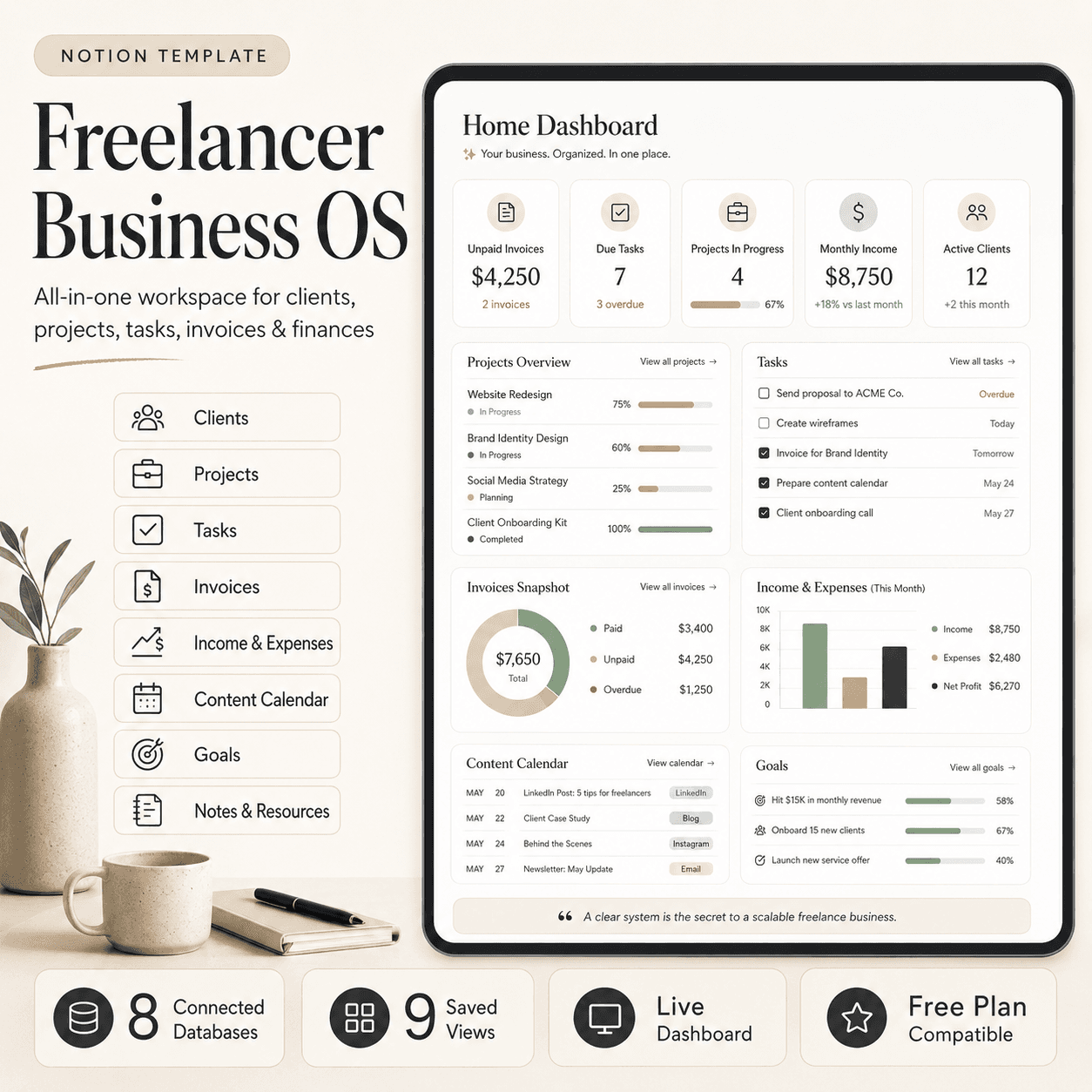
Freelancer Business OS | All-in-One Notion Template for Clients, Projects, Tasks, Invoices & Finances
$50$29.99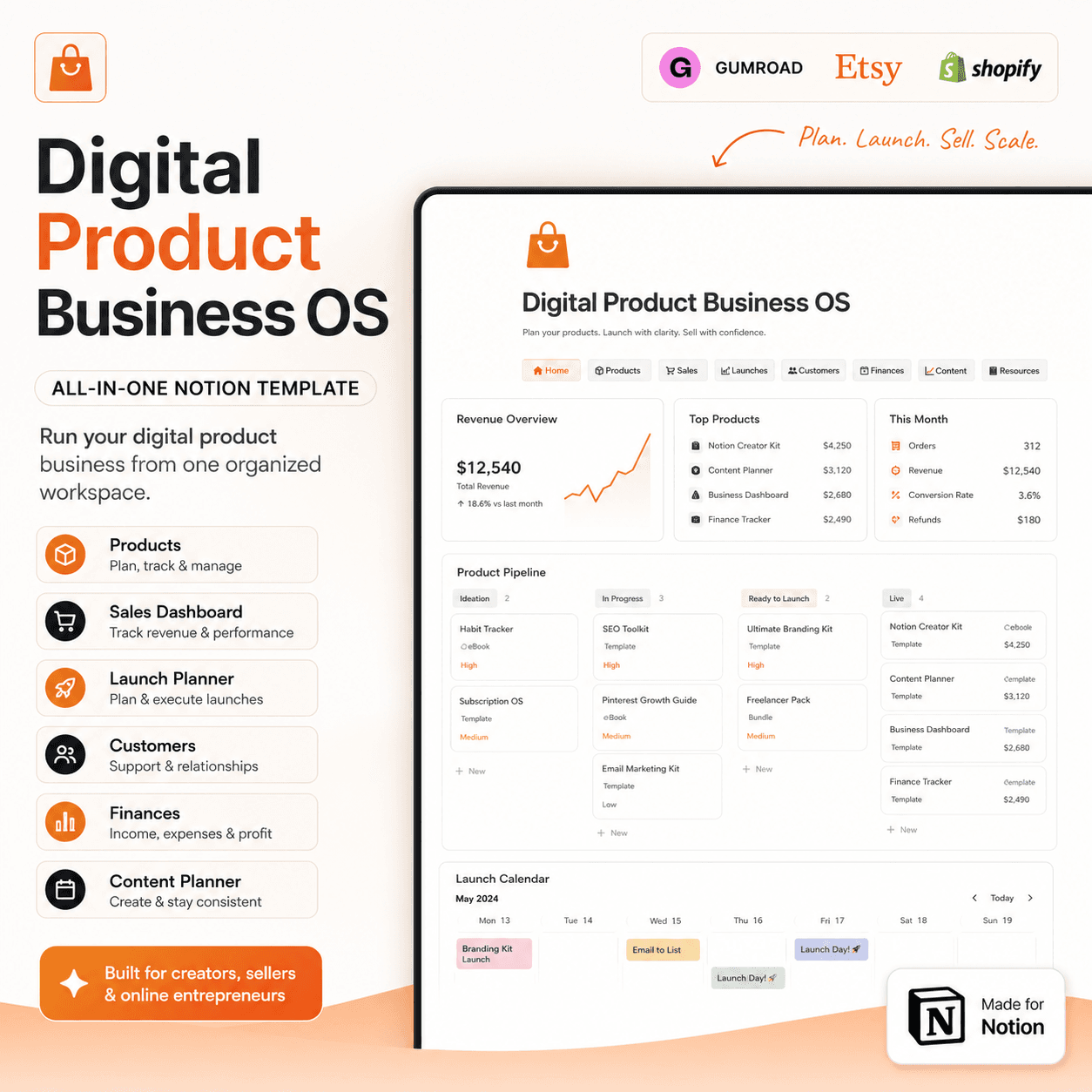 Notion
Digital Product Business OS | Notion Template for Gumroad, Etsy & Online Sellers
$50$29.99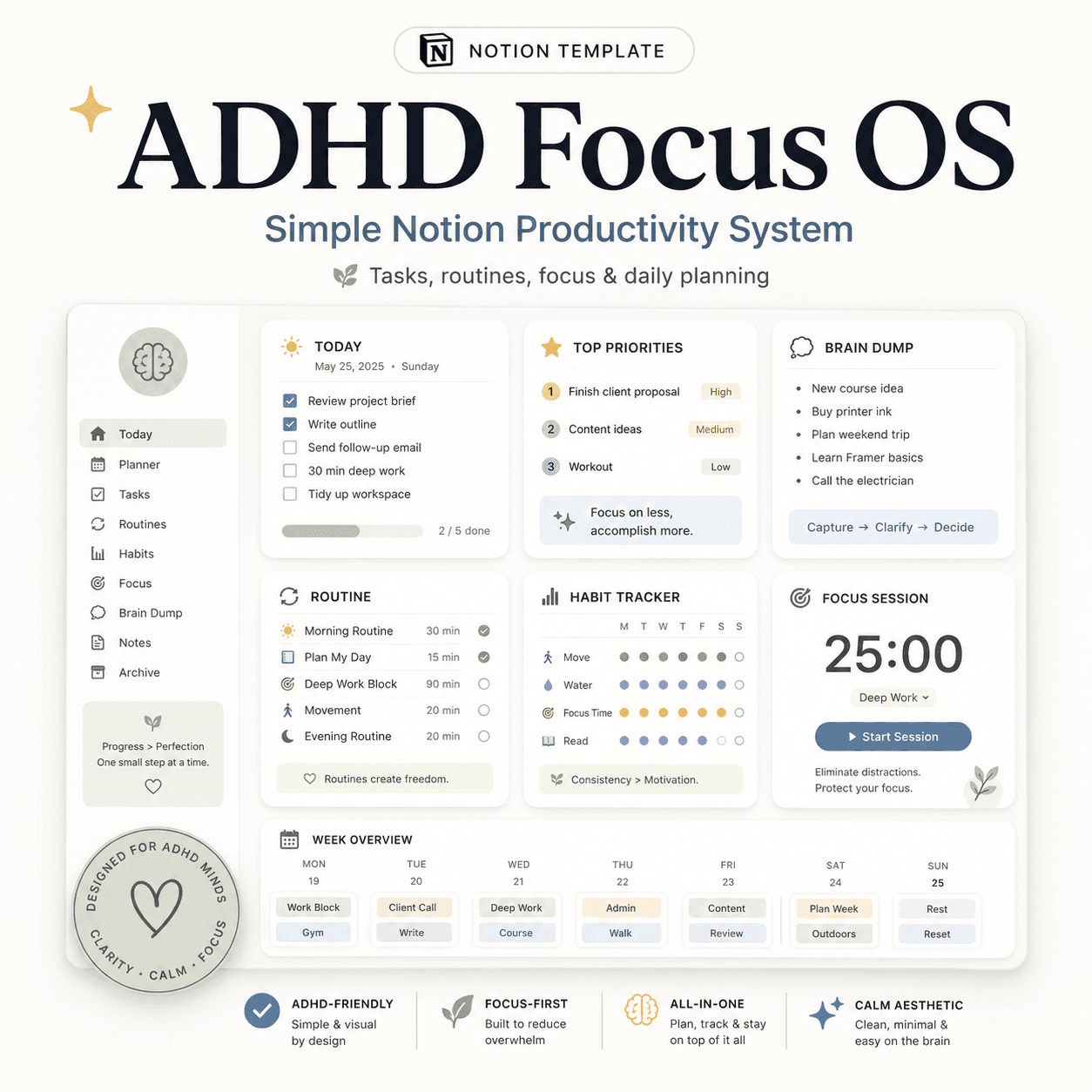 Notion
ADHD Focus OS | Simple Notion Productivity System for Tasks, Routines & Daily Planning
$50$29.99More from the lab
View all posts → Notion
Notion vs Trello vs ClickUp: Which One Should You Actually Use?
Where Notion, Trello and ClickUp each actually win — connected knowledge and flexible databases, dead-simple boards, or heavier built-in project management.
 Notion
Notion Templates: The Complete Guide to Building Your Best Workspace
What actually makes a Notion template worth using, free vs. paid trade-offs, and how to pick the right system for founders, personal productivity, content teams and more.
 Notion
Notion for Small Business: Templates to Run Your Whole Operation
The leaner version of a founder's Notion OS, built for solo operators and small teams who need one workspace instead of five subscriptions.